
NHTSA ID Number: 11024299
Manufacturer Communication Number: 08-337-25
TSB/Document Date: 2025-10-15
Summary
Radio USB Update to R47.03.26 *Customers must experience a Malfunction Indicator Lamp (MIL) illumination. Upon further investigation the technician may find that one or more of the following Diagnostic Trouble Codes (DTCs) have been set:** ● B15A1-00 - Media Port 1 Connection. ● B15A2-00 - Media Port 2 Connection. ● B15A3-00 - Media Port 3 Connection. ● B15A4-00 - Media Port 4 Connection. The customer may also describe one of more of the following: ● Tune knob does not move the scroll bar in Device Manager’s phone setting menu. ● Tune knob does not move the scroll bar in the Apps Drawer. ● Rejected incoming phone call using the radio screen but cluster continued to display incoming call message. ● Head Unit (HU) switches from SXM® to wireless without user’s input. ● Home screen Loading Data indefinitely after profile switch. ● Device List shows empty although there are devices connected. ● Unable to pair phone. ● Fuel consumption menu in radio not available. ● Radio and / or SXM® presets being lost. ● Auto button on climate control screen not present. ● When Voice Recognition button is pressed on radio, wrong message is displayed. ● Bluetooth Pairings instead of connect Apple Carplay® or Android Auto® device. ● Wifi hotspot password always shows "null". Can’t use feature. ● Wifi hotspot name not recognized on customers cellular device. ● Language selection on radio can’t be saved after selecting. ● Wrong date format displayed using Korean language. ● Radio display is blank (rear view camera still operable). ● Radio touchscreen inoperative. ● Zoom In/Out button inoperative for rear view camera (rear view camera still operable). ● Rear Cross Path Mode and Blind Spot chime keeps playing when object is no longer present. ● Irregular chime frequency. ● Time format does not change from military to 12-hour format. ● ABC Jump Keyboard will not display. ● FOTA unable to receive software update due to head unit not checking into the server although it is being driven everyday. ● Pressing mute hard key while on phone call does not mute microphone. ● Adjust clock settings shortcut in home screen does not navigate you to the right screen. ● SXM® radio stuck on current channel, no audio and cannot navigate to other channels using soft keys or knob. This bulletin involves inspecting the software level and updating the software to: R47.03.26.
If the PDF is very large, it may not load in the preview below.
Some older TSBs had multiple PDFs — visit the NHTSA Website to view all PDFs.
If the TSB PDF does not show, download or view it on the NHTSA Website.
Click on the (+) Plus Sign
Then Click on Associated Document(s)


- Advanced VCI Box, Industry-leading J2534 Pass-Thru...
- High-Speed OEM-Level Diagnostics & Programming: Unlock true...
- Coverage for 17 Car Brands & Ultra Reliability: Works...
- User-Friendly RLink Platform & Expert Support: TOPDON’s...
- 6.6 ft USB-C Cable & Portable Storage Case: The RLink J...
This product presentation was made with AAWP plugin.
Search NHTSA Database for Recalls
Search NHTSA Database for Vehicle Investigations
View Latest Vehicle Investigations
Search NHTSA Database for Vehicle Complaints
View Latest Vehicle Complaints
TSB/Document ID: 08-337-25
Replacement Service Bulletin Number:
MFR Communication Date: 2025-10-09
MFR Internal Campaign ID/Software Version:
Communication Type: Service Bulletin/Repair Instructions
NHTSA Components: ELECTRICAL SYSTEM
MFR Component System:
MFR Component Subsystem:
Previous TSB | Next TSB |
Technical Service Bulletin (TSB)
Radio USB Update to R47.03.26
REFERENCE:
TSB: 08-337-25
GROUP: 08 - Electrical
Date:
October 9, 2025
REVISION: 08-172-24
VEHICLES
AFFECTED:
2022 - 2023 (MP) Jeep Compass
MARKET APPLICABILITY:
This bulletin applies to vehicles built on or before August 14, 2023
MEA
NA
(MDH 0814XX) equipped with one of the following radios:
SA
IAP
● Uconnect 5 W 10.1" Display (Sales Codes UBU, UEU, UPU and UFU).
● Uconnect 5 W 8.4" Display (Sales Codes UBE, UEE, UPE and UFE).
EE
CH
NOTE: **This bulletin applies
to the North American
and Middle East & Africa
markets.**
CUSTOMER
SYMPTOM:
**Customers must experience a Malfunction Indicator Lamp (MIL) illumination. Upon further
investigation the technician may find that one or more of the following Diagnostic Trouble Codes (DTCs)
have been set:**
● B15A1-00 - Media Port 1 Connection.
● B15A2-00 - Media Port 2 Connection.
● B15A3-00 - Media Port 3 Connection.
● B15A4-00 - Media Port 4 Connection.
The customer may also describe one of more of the following:
● Tune knob does not move the scroll bar in Device Manager’s phone setting menu.
● Tune knob does not move the scroll bar in the Apps Drawer.
● Rejected incoming phone call using the radio screen but cluster continued to display incoming call
message.
● Head Unit (HU) switches from SXM® to wireless without user’s input.
● Home screen Loading Data indefinitely after profile switch.
● Device List shows empty although there are devices connected.
● Unable to pair phone.
● Fuel consumption menu in radio not available.
● Radio and / or SXM® presets being lost.
● Auto button on climate control screen not present.
● When Voice Recognition button is pressed on radio, wrong message is displayed.
● Bluetooth Pairings instead of connect Apple Carplay® or Android Auto® device.
● Wifi hotspot password always shows "null". Can’t use feature.
● Wifi hotspot name not recognized on customers cellular device.
● Language selection on radio can’t be saved after selecting.
● Wrong date format displayed using Korean language.
● Radio display is blank (rear view camera still operable).
● Radio touchscreen inoperative.
● Zoom In/Out button inoperative for rear view camera (rear view camera still operable).
● Rear Cross Path Mode and Blind Spot chime keeps playing when object is no longer present.
● Irregular chime frequency.
● Time format does not change from military to 12-hour format.
● ABC Jump Keyboard will not display.
B08 FSAR-TSB-6417
-2-
● FOTA unable to receive software update due to head unit not checking into the server although it is being
driven everyday.
● Pressing mute hard key while on phone call does not mute microphone.
● Adjust clock settings shortcut in home screen does not navigate you to the right screen.
● SXM® radio stuck on current channel, no audio and cannot navigate to other channels using soft keys or
knob.
CAUSE:
Radio software
This bulletin supersedes Technical Service Bulletin (TSB) 08-172-24, date of issue July 31, 2024, which
should be removed from your files. All revisions are highlighted with **asterisks** which include
updated Customer Symptoms statement, markets, markets note and Repair Procedure steps.
This Technical Service Bulletin (TSB) has also been released as a Rapid Service Update (RSU) 22-043,
date of issue March 09, 2022. All applicable RSU VINs have been loaded. To verify this RSU service
action is applicable to the vehicle, use VIP or perform a VIN search in DealerCONNECT/Service Library.
All repairs are reimbursable within the provisions of warranty.
REPAIR SUMMARY:
This bulletin involves inspecting the software level and updating the software to: R47.03.26.
CLAIMS DATA:
Labor Operation No:
18-60-F2-BA
18-60-F2-BB
18-60-F2-BC
18-60-F2-BD
Failure code
Labor Description
Create USB Jump
Drive from Uconnect
Website (One Time
Only) R41.00.56 S/W
(0 - Introduction)
Create USB Jump
Drive from Uconnect
Website (One Time
Only) R47.03.26 S/W
(0 - Introduction)
Radio, Check Software
Level and Perform
Software Update (One
Step Update) R47.03.26
S/W
(0 - Introduction)
Radio, Check Software
Level and Perform
Software Update (Two
Step Update) R41.00.56
S/W and R47.03.26 S/W
(0 - Introduction)
CC
Skill Category
6 - Electrical and Body
Systems
Labor Time
0.4 Hrs.
6 - Electrical and Body
Systems
0.3 Hrs.
6 - Electrical and Body
Systems
0.6 Hrs.
6 - Electrical and Body
Systems
1.0 Hrs.
Customer Concern
-3-
B08 FSAR-TSB-6417
The dealer must use failure code CC with this Technical Service Bulletin.
● If the customer’s concern matches the SYMPTOM identified in the Technical Service Bulletin, failure code
CC is to be used.
● When utilizing this failure code, the 3C’s (customer’s concern, cause and correction) must be provided for
processing Technical Service Bulletin flash/reprogramming conditions.
DIAGNOSIS:
Using a Scan Tool (wiTECH) with the appropriate Diagnostic Procedures available in DealerCONNECT/
Service Library, verify all related systems are functioning as designed. If DTCs or symptom conditions, other
than the ones listed above are present, record the issues on the repair order and repair as necessary before
proceeding further with this bulletin.
If the customer describes any of the symptoms listed above in the customer symptom section, perform the
Repair Procedure.
SPECIAL TOOLS/EQUIPMENT:
Description
wiTECH or Equivalent
Ref. No.
–
Notes
–
REPAIR PROCEDURE:
1. Verify the software version by following these steps:
● On the radio display screen go into “Vehicle Settings”
● Select “System Information”. Select “Version Information”.
● Under the “Build Number”, radio software version is listed. For example, the software version here is
00.41.00.56.00 Fig. 1.
Fig. 1
Software Version
NOTE: If the radio software is at or above R34.00.49 and under R41.00.56 the radio will need
two USB flash drives to update the radio. This means that, for example, if the radio is at
R34.00.49, it will need to be updated to R41.00.56 first and R47.03.26 as a second step.
CAUTION!
Do not attempt to update a radio with a lower software level than R41.00.56 straight to R47.03.26.
B08 FSAR-TSB-6417
-4-
2. What is the current radio software level (Application Version)?
● R41.00.56 or higher >>> The radio will only need one USB flash drive to update the radio. Create a
USB flash drive with R47.03.26 software. Proceed to Step 3.
● At or above R34.00.49 and under R41.00.56>>> The radio will need two USB flash drives to update
the radio. Create a USB flash drive with R41.00.56 software. Proceed to Step 3.
NOTE: Install a battery charger to ensure battery voltage does not drop below 13.2 volts. Do not
allow the charging voltage to climb above 13.5 volts during the flash process.
NOTE: If this flash process is interrupted/aborted, the flash should be restarted.
NOTE: A 4 GB USB flash drive is required for this update. It is also recommended to use a quality,
name brand (Kingston®) flash drive over a generic USB flash drive.
3. Has a 4GB USB flash drive been created?
● YES >>> Proceed to Step 13.
● NO >>> Proceed to Step 4.
4. Perform the following steps to format the USB flash drive Fig. 2.
a.
b.
c.
d.
Select “FAT32” format.
Select “Default allocation size” under Allocation Unit Size.
Select “Quick Format” under Format Options.
Click “Start”.
Fig. 2
Formatting The USB Flash Drive
5. Go to DealerCONNECT>Service>Uconnect Command Center>Uconnect>More Information >Dealer
software downloads to download the files.
6. If a security message appears “Do you want to view only the web page content that was delivered
securely?” Fig. 3. Press “No” to continue.
Fig. 3
Pop-Up Security Message
-5-
B08 FSAR-TSB-6417
NOTE: If the software cannot be downloaded, make sure you have proper security access. If not,
have the Service Manager or Shop Foreman download the software update.
7. Use a blank USB flash drive with at least 4 GB of space. Follow the on-screen instructions to download the
software files.
8. Download the software update file to your local PC’s desktop. Make sure to select the “MAC”radial button
for all downloads Fig. 4.
Fig. 4
MAC Download Steps
9. **Be sure to download the file to your designated folder before extracting the zip file to the blank USB flash
drive Fig. 5.
NOTE: A blank USB flash drive will be needed for each radio update; additional updates cannot be
on the same USB flash drive.
Fig. 5
Zip File
10. Unzip the file to the root folder of USB flash drive. File should not be within a zip folder. Your USB file
should look like when you open it. Unzip the file to the root folder of USB flash drive. File should not be
within a zip folder. Your USB file should be look like when you open it Fig. 6.
Fig. 6
Extract File To USB
11. Once the file is extracted to the USB flash drive flash drive, it is recommended to label the USB flash drive
with the bulletin number and proper radio Sales Code.**
B08 FSAR-TSB-6417
-6-
12. Perform the following steps to properly eject the USB flash drive Fig. 7:
a. Right click on the location of the USB flash drive.
b. Click “Eject” to avoid data corruption.
c. Remove the USB flash drive from the PC.
Fig. 7
Ejecting The USB Flash Drive
NOTE: Verify the vehicle fuel level is at least 1/8 of a tank. If not, add fuel as required.
13. Shut off all remaining accessories for the duration of the update (flashers, climate controls, etc.).
14. Wait for the radio to fully power on and initialize. Ensure all splash, partner logo, animation, disclaimer and
main screens have loaded, before starting the software update.
NOTE: The engine must be running and radio powered on during the update. Failure to do so may
result in the radio not being updated and create connectivity issues. DO NOT remove the
USB flash drive during the update.
15. Start the vehicle and insert the USB flash drive into the USB port.
16. Vehicle must be out of “Ship Mode”. Starting at the radio ‘Home’ screen Fig. 8.
Fig. 8
-7-
B08 FSAR-TSB-6417
Home Screen
17. Insert the USB flash drive into the USB port.
18. The radio will prompt you if you want to update to the newest software version Fig. 9.
Fig. 9
Software Update Screen
19. Select “Update Now”.
20. The radio will prompt you if you want to continue updating to the newer software Fig. 10.
Fig. 10
Software Updating Screen
21. Select “Continue”Fig. 11.
Fig. 11
Installing Update Screen
B08 FSAR-TSB-6417
-8-
22. The update will take approximately 15-20 minutes Fig. 12.
Fig. 12
Update In Progress Screen
23. The radio will reboot and you will observe the update screen after the splash screen once the update has
been successful Fig. 13.
Fig. 13
Software Updated Screen
24. Select “What’s new” to view the software level Fig. 14.
Fig. 14
Software Update
-9-
B08 FSAR-TSB-6417
25. What is the current radio software level?
● R41.00.56>>> Radio still needs one more USB flash drive update. Proceed to Step 4.
● R47.03.26>>> Radio update is complete. Proceed to Step 26.
26. Remove the USB flash drive from the USB port.
27. Cycle the ignition ‘Off’ and allow vehicle to go to sleep for two minutes.
28. Clear all DTCs that may have been set.
POLICY:
Reimbursable within the provisions of the warranty.
This bulletin is supplied as technical information only and is not an authorization for repair. No part of this publication may be reproduced, stored in a retrieval system, or
transmitted, in any form or by any means, electronic, mechanical, photocopying, or otherwise, without written permission of FCA US LLC.

- [2026 Top-Tier Hardware and Software Upgrade]: Topdon ArtiDiag900 Lite scanner has enhanced hardware and latest features, including Android 11.0, 5x faster CPU, 10000mAh battery for 12 hours of continuous operation, stable wireless diagnosis with Bluetooth 5.0, 8-inch touchscreen. Added bi-directional control, wireless diagnosis, battery testing (optional), and DTC repair guide
- [TOPDON Bidirectional Scan Tool]: This bidirectional obd2 scanner sends commands to the vehicle's ECU for active testing, enabling users to accurately and quickly locate faulty components such as injectors, coolant pumps, windows, wipers, headlights, mirrors, etc. The bidirectional control scanner is the ideal choice for workshops/automotive repair shops as it significantly reduces mechanic's diagnostic time.
- [Wireless Bluetooth Diagnostic Experience]: The AD900 Lite scan tool comes with a Bluetooth 5.0 VCI, supporting a wireless diagnostic range of up to 33 feet (10 meters), allowing you to diagnose without being confined to cables or tight spaces. Stable and fast wireless diagnosis provides a comfortable repair environment. It also offers VCI cables to increase connectivity options.
- [DTC Repair Guide Function]: Easily diagnose issues with your vehicle and receive guidance on repairs with the topdon scan tool's fault code definitions for all systems,maximize your diagnostic capabilities. This function is compatible with Chrysler/Dodge/Jeep/Fiat 2010-2014 and expanding with continual updates,the AritDiag 900 Lite car diagnostic scanner is the must-have tool for any technician or DIY enthusiast.
- [OE-Level Full System Diagnostics]:AritDiag900 Lite full system diagnostic scanner can scan ALL available modules(Engine, Transmission, Airbag, ABS, ESP, TPMS, Gateway, Steering, Radio, Air conditioning, ect.) to✔read ECU info, ✔read/clear codes, ✔view live data stream, ✔retrieves freeze-frame, ✔perform active tests, and more. With just a simple click, it provides you with accurate and in-depth diagnostics.

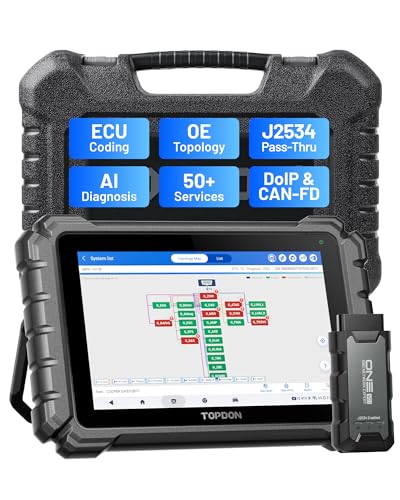
- Dual WiFi & 10.1" Touchscreen: Provides a stable, high-speed wireless link 3x faster than Bluetooth, and a responsive, professional interface. Topdon ONE obd2 scanner diagnostic tool ensures smooth, lag-free diagnostic scan, boosting bi mechanic efficiency
- J2534 Pass-Thru Support: The included ONE VCI supports the J2534 standard, allowing it to function as a pass-thru device when paired with OEM diagnostic software.Through TOPDON’s RLink platform, technicians can perform dealer-level coding, expanding in-house capabilities without investing in multiple factory automotive scan tools
- OE Topology Mapping: Visualize the vehicle’s ECU network exactly as it’s built.Zoom, pan, and highlight specific modules to pinpoint component issues with precision.Topology mapping displays real-time communication between modules
- Topfix AI Assistant: Covers 5 million plus fault codes and delivers instant causes, symptoms, and repair guidance with professional wiring diagrams for each code.Slashes diagnostic time, boosts first-time fix accuracy, and increases shop revenue
- 50 Plus Service Functions: Covers high-demand services like ADAS calibration, DPF regen, TPMS reset, ABS bleed, and throttle adaptation.Expands your service menu, allows you to charge premium rates, and turns away zero jobs due to lack of tooling. Vehicle-specific functionality may vary.

- 2026 Advanced ECU Coding Scan Tool: Maximize the capabilities of your vehicles with the ArtiDiag Pro. This scan tool, seamlessly compatible with renowned models such as VW, A-U-D-I, SKODA, SEAT, BENZ, and more, empowers you to uncover hidden features, deactivate annoying functions, and code retrofitted components for peak performance. Ensure a backup before coding and steer clear of problems on low battery levels.
- Efficient Diagnostics with Bidirectional Control: Say goodbye to uncertainty, streamline diagnostics, and reclaim valuable time with ArtiDiag Pro scan tool. This bidirectional scan tool exceeds expectations, enabling targeted tests on individual actuators to swiftly identify and resolve issues. Covering lights, door locks, fuel and coolant systems, windows, wipers, EVAP, and more in vehicle components.
- 35+ Services Resolve 90% of Repair Challenges: Unleash maximum productivity with the ArtiDiag Pro, a scan tool that tackles 90% of maintenance issues through its 35 special functions. Effortlessly clear oil maintenance indicators with oil reset. Engage the EPB Reset for brake system management and establish precise alignment with the Steering Angle Reset to define the straight-line reference position for your vehicle.
- FCA Autoauth : This diagnostic tool supports Autoauth for FCA SGW/Renault, Chrysler, Jeep, Dodge, Fiat etc. 2017 and later. NOTE: Due to Product Upgrade, there is no Chrysler 12+8 adapter, the BMW-20 Adapter in the package any more. We are sincerely sorry for the inconvenience. NOTE: Please confirm compatibility before purchase.(Topdon Website>Support>Vehicle Coverage)
- Professional Customer Support: At TOPDON, your satisfaction is our unwavering commitment. Experience hassle-free support and a lifetime of expert assistance. Should you encounter any challenges, reach out to us at 833-629-4832. For returns, please damage the packaging to prevent Amazon from reselling it. Please be advised that after two years, a subscription fee of 249 Bucks will apply.
This product presentation was made with AAWP plugin.
Last update on 2026-04-13 / Affiliate links / Images from Amazon Product Advertising API